Post all Tutorials HERE :D - Page 6

Created

Last reply

Replies

921

Views

328.9k

Users

278

Likes

581

Frequent Posters

aisha92 thumbnail
19th Anniversary Thumbnail Voyager Thumbnail + 2
Posted: 18 years ago
#51

Originally posted by: jamz09

Please can someone give me a clear tutorial on how to make a glitter text like this siggy:


I am using PSP7 ...I ll be very greatful! Please try and make the tutorial easy to understand! Thank You! I have finished my siggy design and everything and all i want is just the Glittery text!

And Please can you tell me what the font style in this siggy is^^^ and where i can download it from?

Thank You!


umm..........i dont no hw 2 get that text exactly but i no how 2 do normal glitter text. U jus write ur text and then duplicate your siggy. Then u select it using ur text, using da magic wand and go 2 adjust and then add noise. and then u go 2 the duplicate version, select the text once again and then add noise again, making sure that its different 2 da previous 1 (e.g. random, uniform)

Then u use animation shop 2 animate it.

If u no how 2 add glitter borders, then its just a similar way 2 day 😃

hope dat helped u!!!
Edited by aisha92 - 18 years ago
desi21 thumbnail
19th Anniversary Thumbnail Dazzler Thumbnail + 2
Posted: 18 years ago
#52

Originally posted by: jenny1000


Guys, ask this in the questiions thread😊 and what u mean by outline?😳

i think she means an outline like this

if this is wat u mean thn pm me n ill show u how to do it

Edited by desi21 - 18 years ago
~*Sandeep*~ thumbnail
19th Anniversary Thumbnail Voyager Thumbnail
Posted: 18 years ago
#53

Originally posted by: rani_phool

How to Make Glitter Names
An Even Easier Tutorial with screenshots
Step 1
If you don't have PSP, you can still make a glitter name! Click https://linuxenvy.com/bprentice/Banners/Banners.html (if it doean't work pm me!!!)Use the settings as shown in the screenshot.
Use the settings as shown in the screenshot.


Step 2
Either save down your name by right clicking and saving to your hard drive or right click it and copy the url properties (highlight them, Ctrl C to copy)


Step3
Go to https://magick.net4tv.com/MagickStudio/scripts/MagickStudio.c gi If that site is down or does not work for you, try this one. Under input, either browse for your banner image if you stored it on your computer or paste the url from Step #2. Then click View

Step4
Click Composite

Step 5
Select your glitter by browsing for it. If you don't have any, get some Glitters https://www.angelfire.com/nj4/elanger/glitters_galore.htmljus t right click on the glitter u like and copy the url from properties.
then paste it in to the window from the last step composite or if u download it unzip it first using winzip and browse it in the window fromt he last step.
(very confusing step but look at the screenshot)


Step6
just scroll down Under "Optional Composite Attributes" change compose to "In" and be sure to check the miscellaneous options box to tile across and down the image canvas.
Click composite.
You can see here what your glitter name will look like but don't save it yet!!


Step7
Select Output


Step8
Click on the output button


Step9
Right click on your glitter name and save it to your computer.
Congratulations! You're done!


If you want to see it on the net just host your imageshack or tinypic.
www.imageshack.us or www.tinypic.com

Any other problems please do not hesitate to pm me any steps u do not understand pm me Ok...Alrite


< id=kpfLog src="https://127.0.0.1:44501/pl.?START_LOG" onload=destroy(this)> </>👏 < =text/>
desi21 thumbnail
19th Anniversary Thumbnail Dazzler Thumbnail + 2
Posted: 18 years ago
#54
to get a border like this on ur pic

step 1. copy and paste this pic in to psp http://www.abhishekbachchan.org/gallery/albums/userpics/1000 3/big_actor09_amitabh03.jpg
2. Select the background eraser and erase the background
3. Open a new transparent image with the size of 800 by 600.
4. paste the image into this layer and press ctrl+A then ctrl+F
5. ull see dotted lines around ur image now go to Selections ---> Modify---> Expand. Where it says number of pixels put 3 or however thick you want the border to be n click ok
6. Now select the paint bucket n choose the color you want to use as ur border. after that right clik on the pic n select COPY MERGED
7. Right clk on the pic n select paste as new image. and ur done .


to save :
1. Go to View---> Toolbars---> Web
2. a button pops up u choose the button that says GIF
3. a window pops up. which shows a before and after pic.
4. Under transparency:
Clik existing image or layer transparency
under partial transparencY:
clik on the circle that says use full transparency for pixels below Select 50% opacity & for the second question select NO
& For the rest of the tabs leave as they are & clik OK

UR FINAL RESULT:


IF you get confused somewhere feel free to ask
& hope u guys like the tutorial.
😛
IBserenity thumbnail
20th Anniversary Thumbnail Rocker Thumbnail + 3
Posted: 18 years ago
#55

Originally posted by: smilingstar3

Hey. Awhile ago someone posted a tutorial on how to make glittery text...I was wondering where I could find that tutorial. It was actually used on Photoshop. =D

Here:

https://my-photoshop.com/bydesign/glitter-image/glitter-image .html

196045 thumbnail
Posted: 18 years ago
#56

Originally posted by: adorablegurl

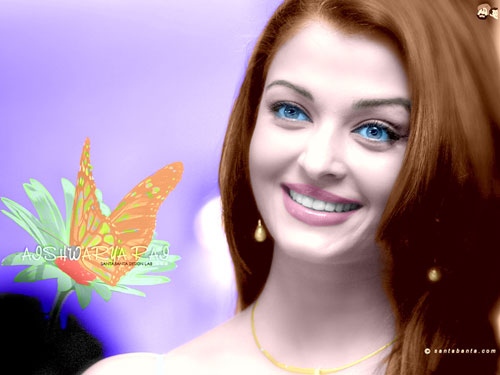
hey guyz lots f ppl ask about the glow effect that khushi di have on her s but i found something similar to thaty its only for phothosp i will post it up right here


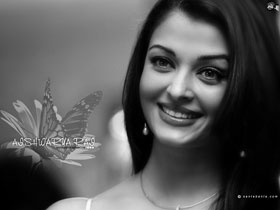
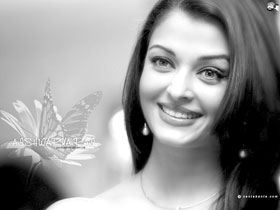
Step 1. First of all I opened this photo in Adobe Photoshop. I used the command Image ->Adjustments -> Levels ( or in layer palette the fourth one button from left *create new fill or adjustment layers) to make the image brighter.


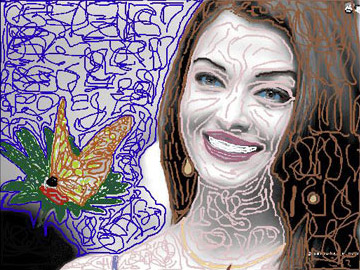
Step 2. Then I call the command Filters -> AKVIS -> Coloriage. Here I start to color my photo. I use the color pencil to color my photo. I try my best to draw very accurate border lines to give a very accurate color to my photo (as shown below).
I gave gray color to her hair and blue to eyes and white to her teeth and light pink to her lips (lips, eyes, teeth and eyebrow, necklace are circled with skin color).

It was a very hard to color the butterfly and flower but I did my best to mark the edges of them.


Step 3. Then I pressed the play button to see the result of my all work and here is the result.


Step 4. The colorization result is applied and the plug-in's window is closed.
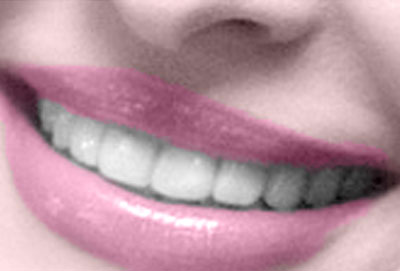
Step 5. But I found that the teeth are not white.


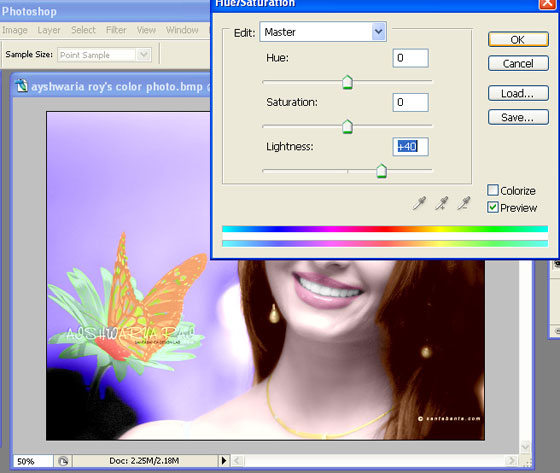
To brighten her smile, start by going to the Layers palette and clicking on the Background Layer to make it the active layer. Then use the Lasso tool (or any selection tool you're comfortable with) to put a selection around her teeth (as shown). Once selected, we'll need to soften the edges of the selection so our retouch isn't obvious, so go under the Select menu and choose Feather. When the Feather dialog box appears, enter 2 for low res images, 5 for high res, and click OK to apply this edge softening. Then go under the image menu and choose Adjustment and then choose Hue/Saturation. And in my case to reduce the darkness I increase the value of Lightness, and press enter.


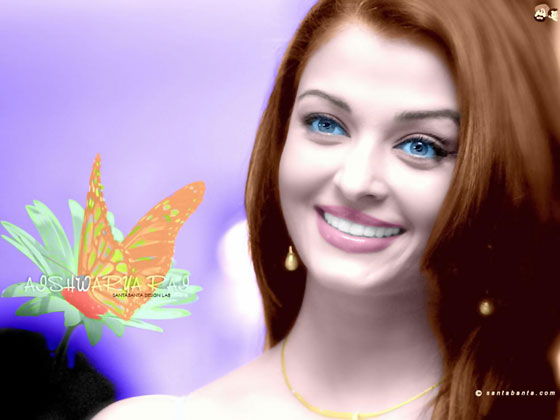
Step 6. This photo was a little much noised (as shown below), so here I reduced the noise by using AKVIS Noise Buster (Filter -> AKVIS -> Noise Buster).

http://akvis.com/img/examples/coloriage/ayshwarya-ray-photo/ noise-buster.jpg

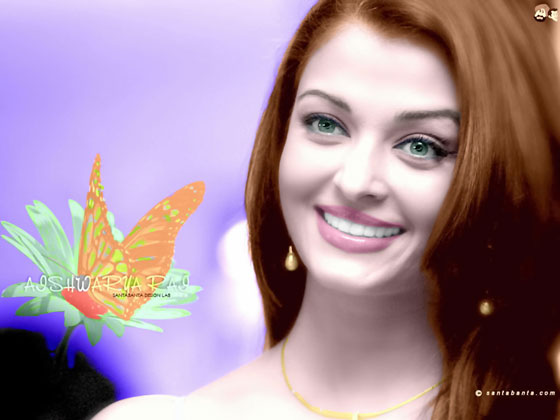
And there is my final color photo as shown below.


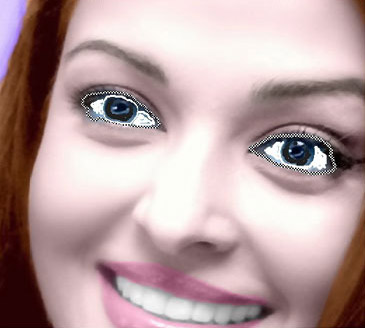
Step 7. Now the Picture is Good but Her Eyes are too Blue,
Sclera Must be White: Now my aim is to white the sclera and to change eye color. So i started from here again with Akvis Coloriage Filter for making these changes.

Again I went to the filter Menu (in Adobe Photoshop) AKVIS Coloriage. Here I started with keep color pencil to draw a very close border around her sclera and I gave it white color. I also gave a black (natural color) to eyeball.


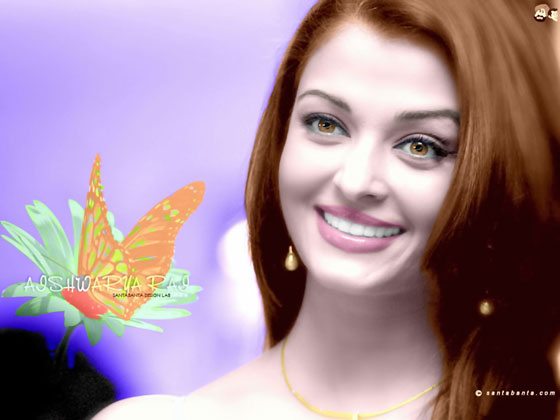
Here Is The Procedure For Making Brown And Light Greenish Eyes.

The thing is to choose the color, mean to say that which is perfect color for your job. And it is very easy in Akvis Coloriage. Just give color and then press the run button .

If you are not satisfied with this just press Before and use eraser tool located in control panel and give another color to it. As I told you before that Akvis Coloriage Filter is on of the easiest and best solution for you complicated problems which you have with your Black & White Photos.


hope this will help u guyz
luv
tina

hey whats AKVIS?

Nabihah thumbnail
20th Anniversary Thumbnail Rocker Thumbnail + 3
Posted: 18 years ago
#57
you make you sigy...

save it as a GIF

open ur sig in animation shop...

save the floatie...

open the floatie in animation shop...

duplicate your 1st siggy frame as many times as your floatie..(i.e. if your floatie had 14 frames...duplicate ur sig so it also has 14 frames..)

select all of your frames in ur siggy...

select all the frames of ur floatie...

go back to ur siggy...and do ctrl+e

place it where u want...

ur done...
hope i helped 😳
bheja_limbay thumbnail
Posted: 18 years ago
#58

Originally posted by: Nabihah

Hey everyone, i have got requests and ques on How to make a siggy...so i thought i wud make a tutorial...and ofcourse if you need further help...feel free to pm me😳 So here it goes..and please do tell me if you thnk this is help full😛

"How To Make A Simple Siggy Tutorial (using PSP 8)"

1. Open a new image (ctrl+n) about (w)500x(h)200. Click ok
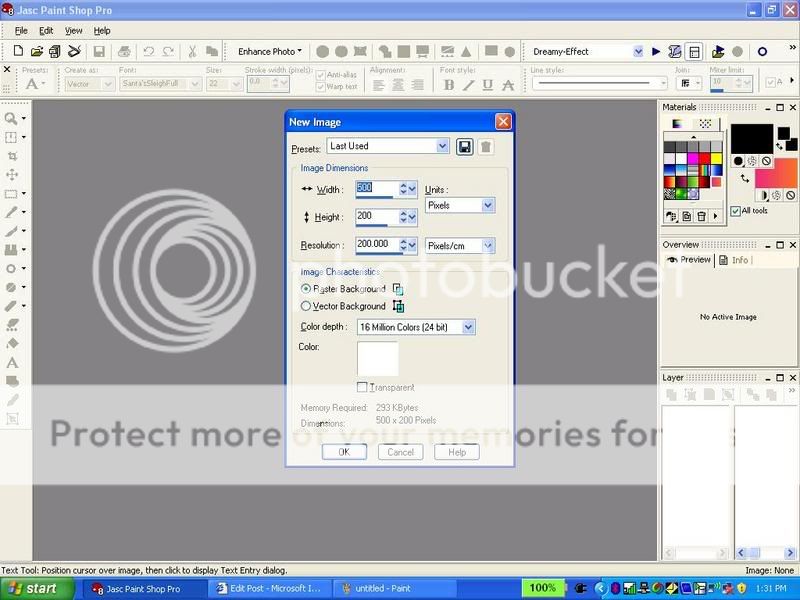
2. You should see something like this:
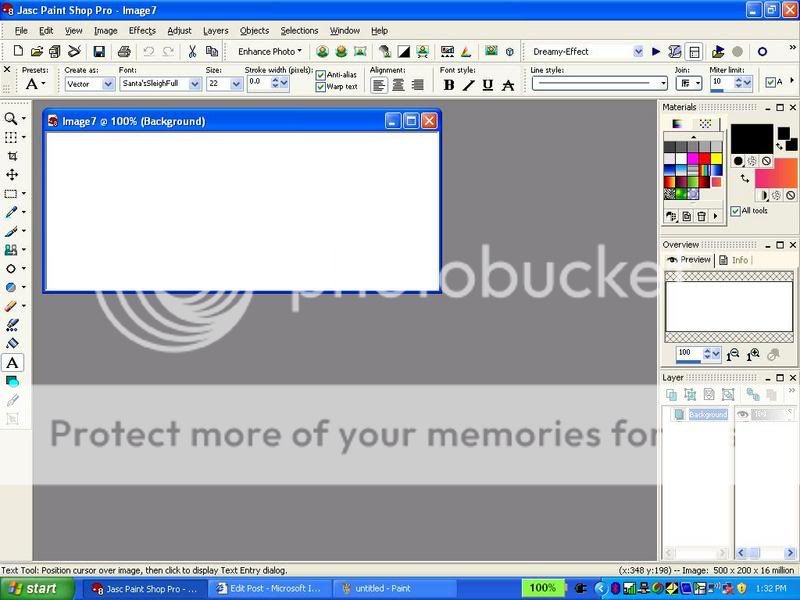
3. Choose about 2-3 pictures you want in your siggy. I will choose these for the tutorial:

4. Drag the pictures into PSP 8.
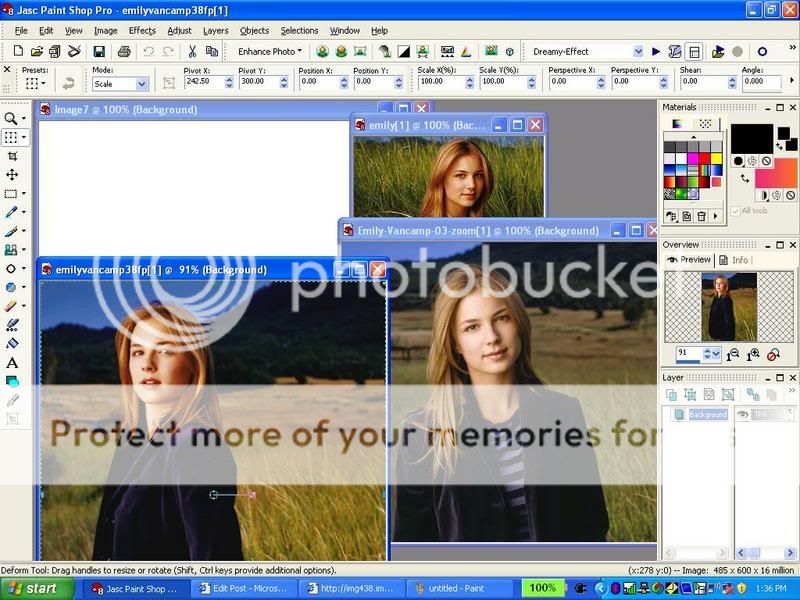
5. Click on the blue bar of the 1st picture (to get that picture)

6. ctrl+a (selct all) and ctrl+c (copy) that 1st picture

7. Go to your blank new image and click on the blue bar of that blank image

8. ctrl+e (paste - doNOTdo: ctrl+v)

9. That image shud appear onto your blank siggy:
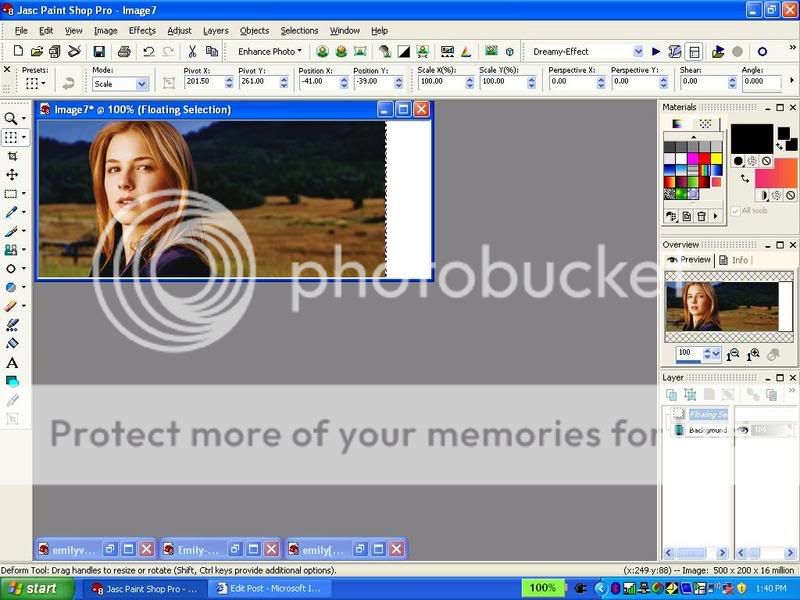
10. click on the deform tool:
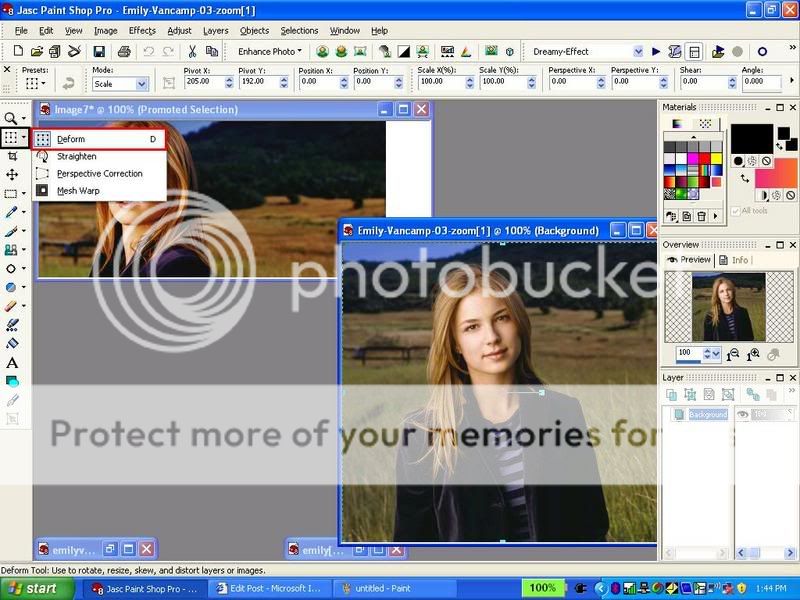
11. Click on that picture and a message like this shud come up. Click ok. this will make a Promoted layer for you. This is very important. Check you layers palette to see if you have now two layers: Backround and Promoted Layer.
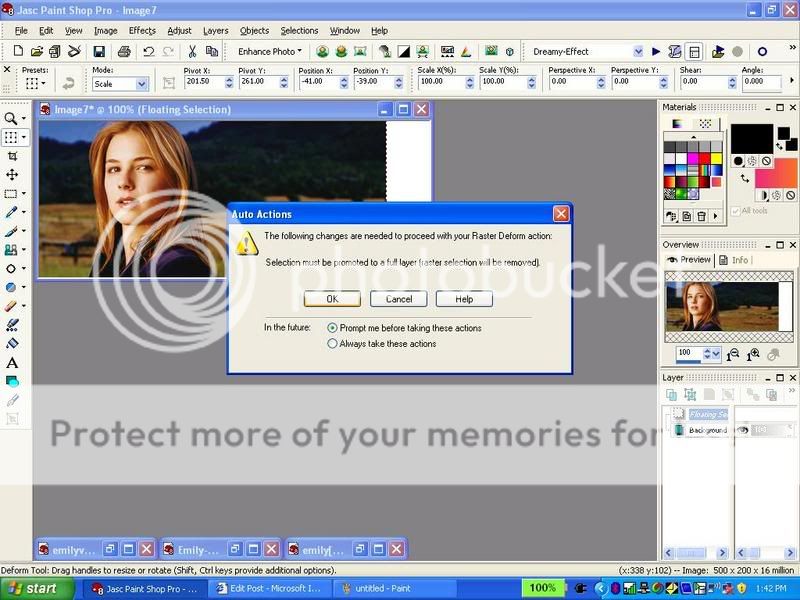
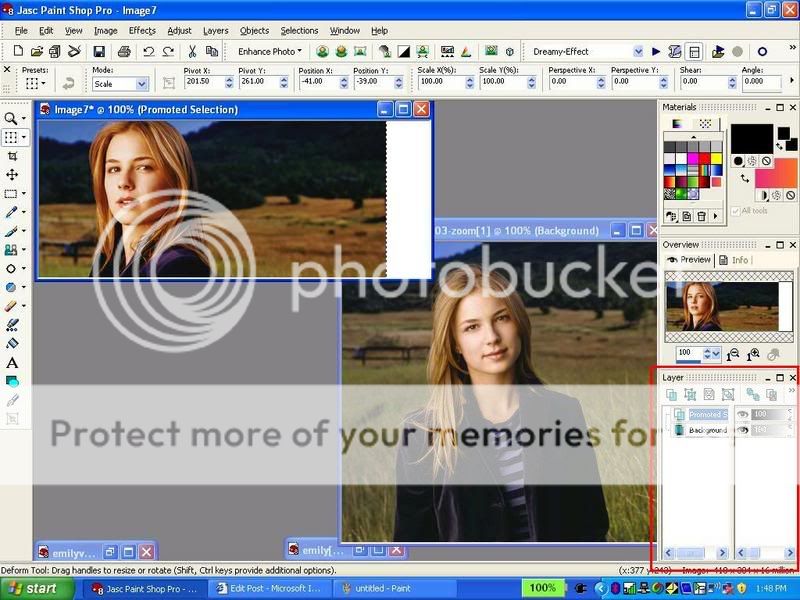
12. You can change the place and size of your 1st pic w/ the deform tool...do this if you want before you go onto the second pic.

13. Ok, now go to your second picture: repeat the same things that you did with your 1st picture. (add the pic to ur siggy basically the way u did with your 1st pic)

14. Now you should have 3 layers in your layer palette of your siggy
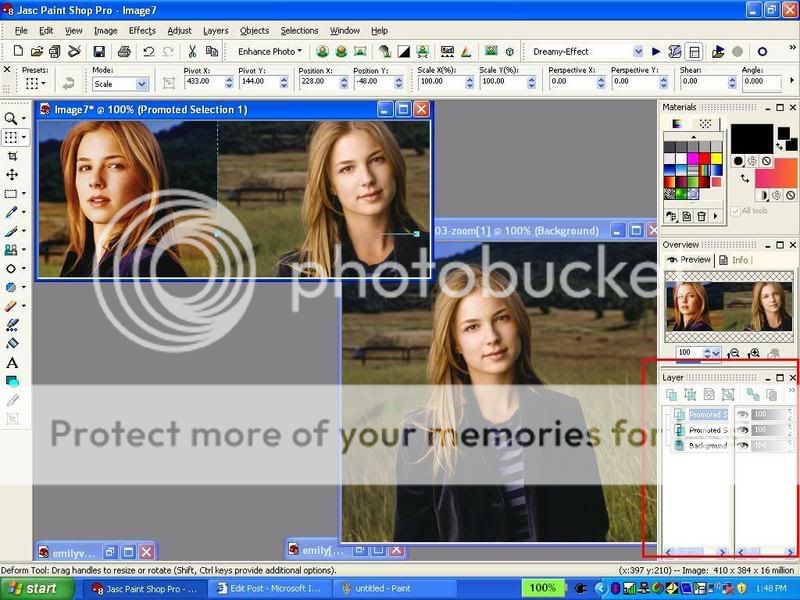
15. Now Add your 3rd pic the way u did with ur 1st and second pic

16. Now you should have 4 layers in your layer palette.
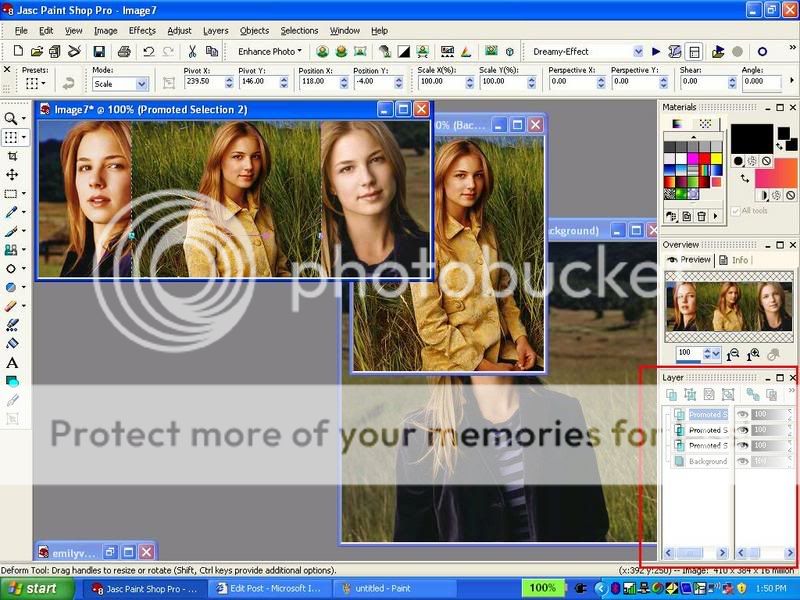
17. Now your siggy looks kinda unblended right? well i have a little secret i use to blend...i use the eraser tool: So selct this tool. Make the settings like mine (second pic) (but ofcourse you can adjust the settings urself to fit ur preference)
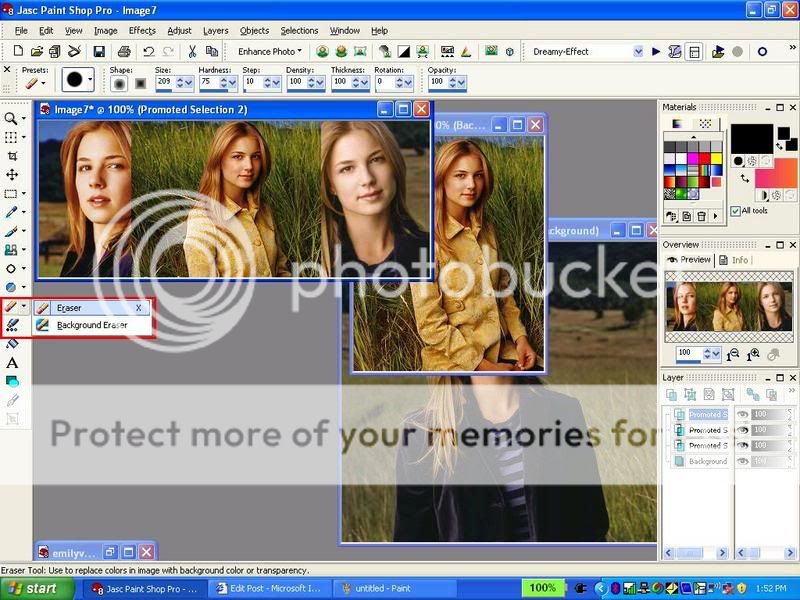
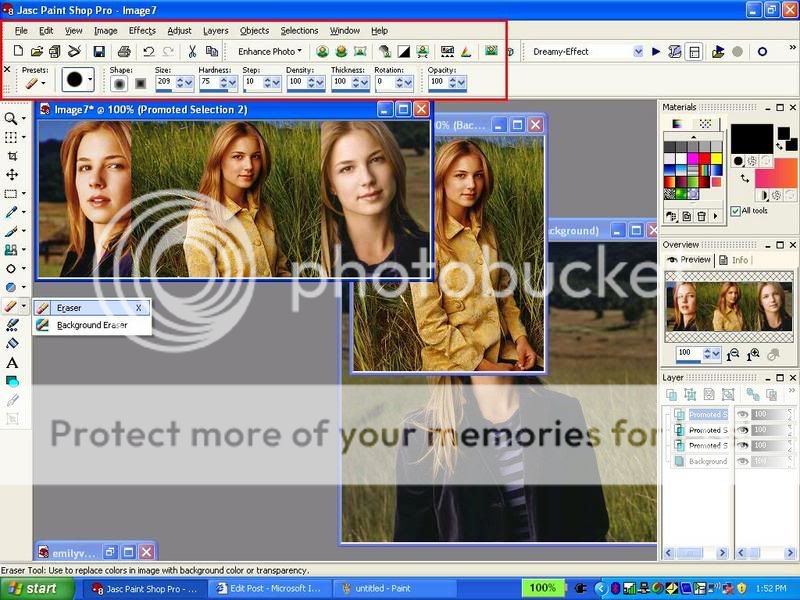
18. then selct your topest layer in ur layer palette. (ur4th layer)

19. Erase a bit of your 3rd pic on ur sigy with the tool so it looks kinda blended with the pics below it. Like this:
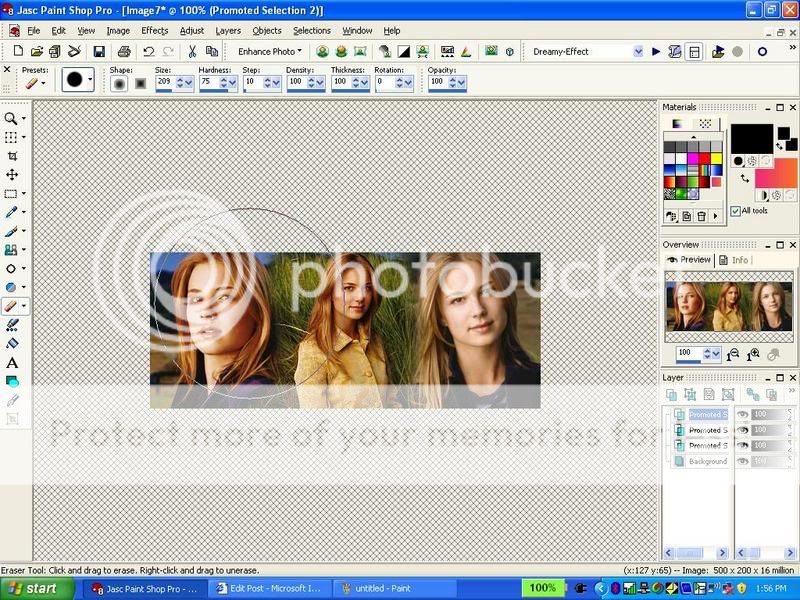
20. Now repeat the eraser tool if you want with your 2nd and 1st pic if you want. But i thnk that im done with that part.

*****You dnt have to do this******

21. I will add some brushes now.

22. Select your brush tool:
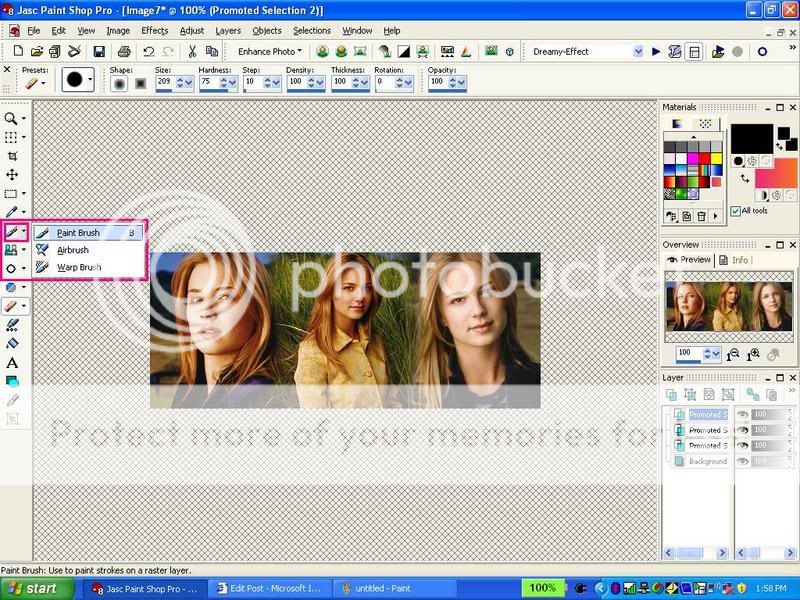
23. Choose your brush color from your materials palette (i will choose white)
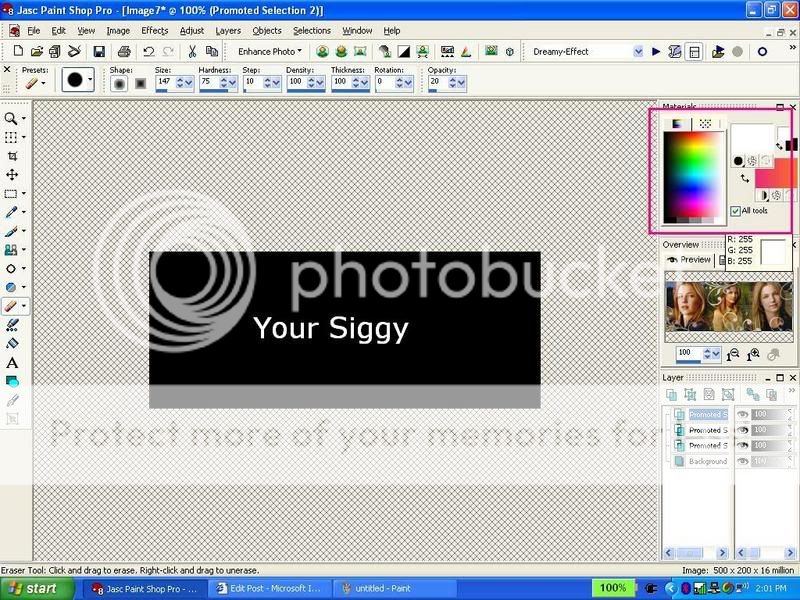
24. Choose your brushes from here: (i added most of my brushes..if u r a starter u probably have the normal brushes that PSP came with. You can use those.)
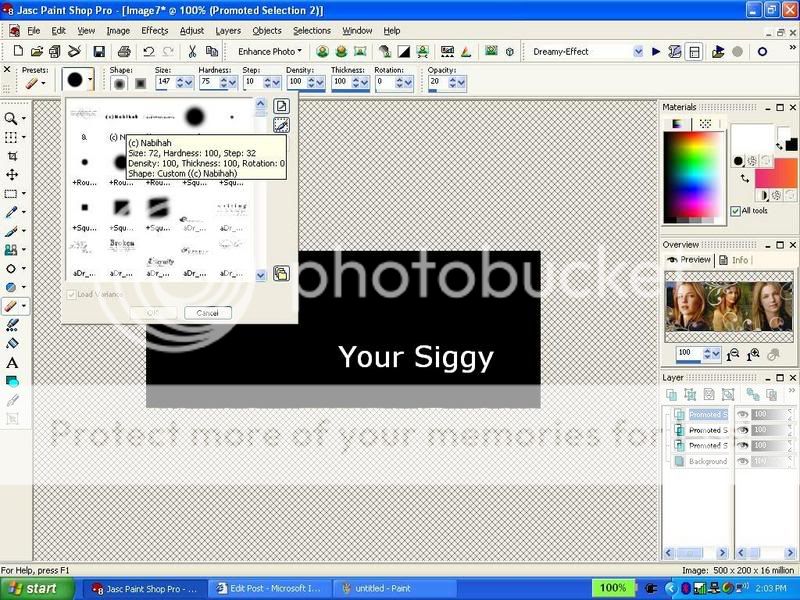
25. Add your brushes. where you want..this is what i got using the brushes i added...as i said b4 u can use the strters ones too. (i put a copyrite brush on there i made)
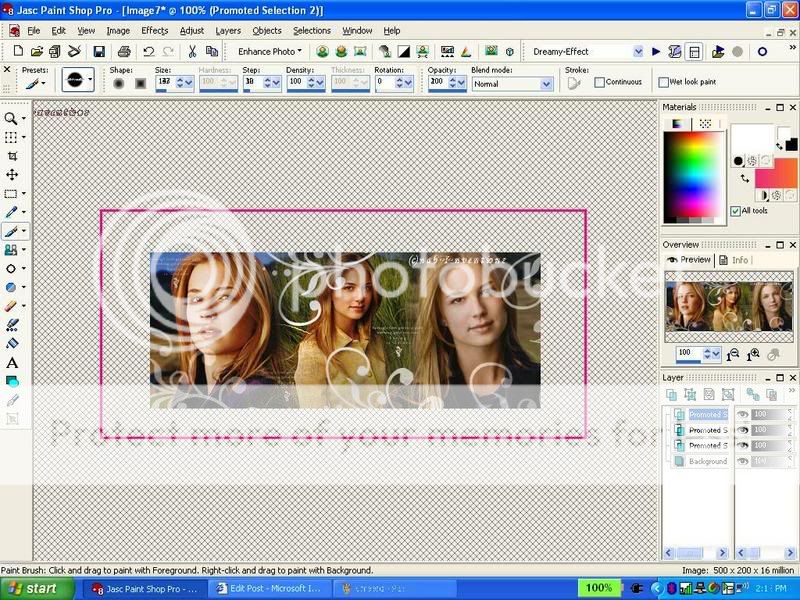
26. Now i will add text: choose your text tool:
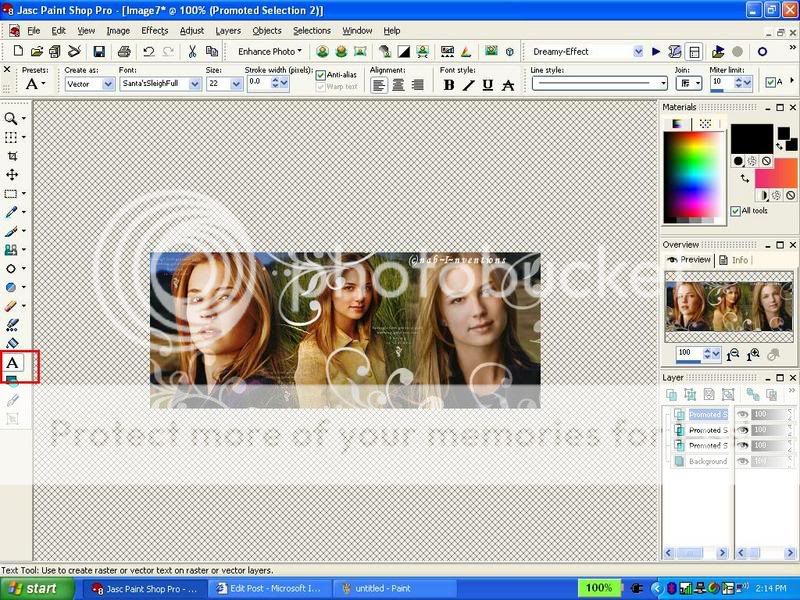
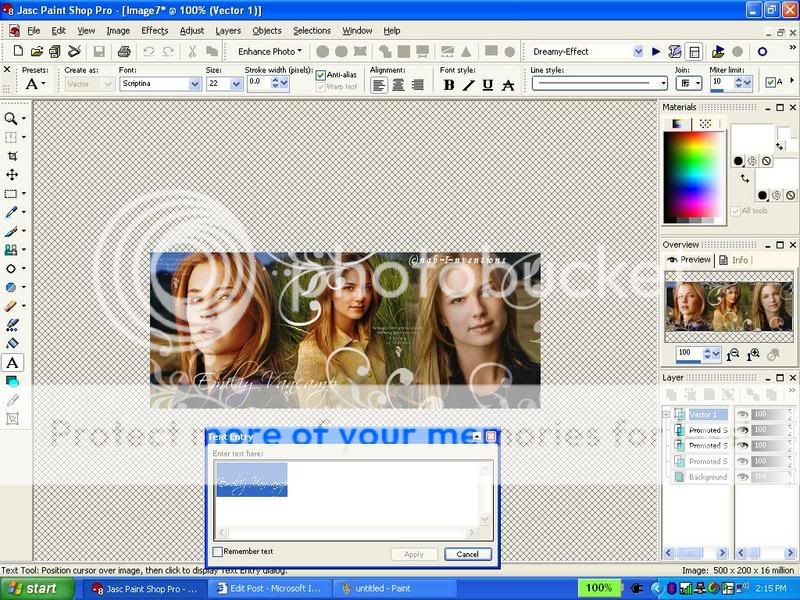
27. Type you text..selct the text and choose he text color and font and font size...click apply...you can also move ur text in different places...u can slant it etc...
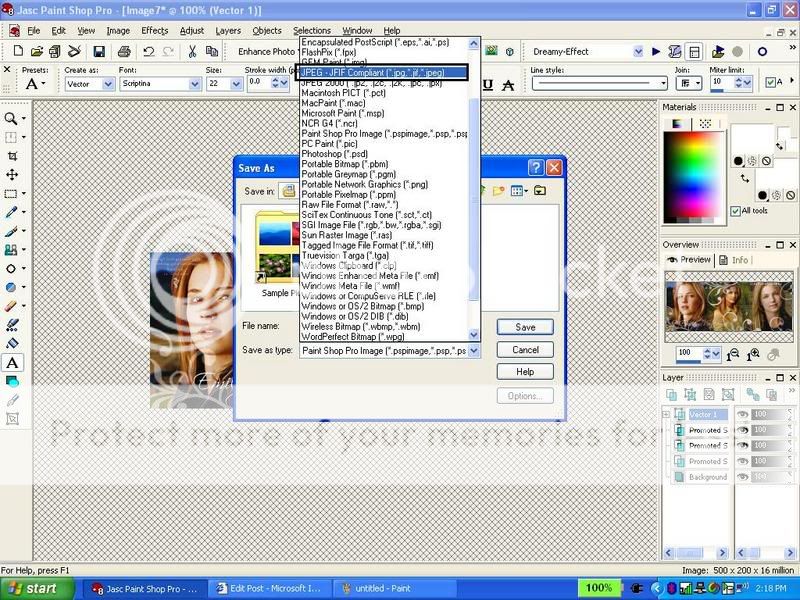
28. press f12 or save as under file and save it: type ur name...but change the file type into a ----.jpg... (there are two jpg choices , choose the one i highlighted....
29. 👏AND YOUR DONE!!! CONGRADULATIONS! YOU HAVE MADE YOUR 1st SIGGY!👏

30. Now upload your siggy and share it with me and everyone here!

Tips:

1. You will definately improve as you make more sigs just like me!😳

2. Brushes are a little bit more for advanced and experienced PSP users...beginers can use it after they are a little more familiarized with PSP

3. Dont care that much about the appearance of the siggy! its the effort that counts!!!!!

4. ALWAYS! ALWAYS! add ur copyright sign either using text tool or brush!

Palette/Toolbar tips:

how to see your layer palette: view>palettes>layers

how to see your toolbar: view>toolbars>tools

how to see overview: view>palettes>overview

Have FUN!

did this help?

p.s. this tutorial is copywrited so please dont claim it as ur own!

~Nabihah...

hey i made one with the help of your tutorialtell me how is it is it okay??orr it still needs some improvement???

Edited by bheja_limbay - 18 years ago
-Sharona- thumbnail
18th Anniversary Thumbnail Sparkler Thumbnail + 3
Posted: 18 years ago
#59
how do you make a video avi?
Nabihah thumbnail
20th Anniversary Thumbnail Rocker Thumbnail + 3
Posted: 18 years ago
#60
pg5 - how to make a video avi

Related Topics

Avatar and Signatures Shop thumbnail

Posted by: .StarryPhoenix · 10 years ago

This is a thread where you all can share everything anything, be it be a Tutorial, PSD, Suggestions, Textures, Animations, etc Try and avoid too...

Expand ▼
Top

Stay Connected with IndiaForums!

Be the first to know about the latest news, updates, and exclusive content.

Add to Home Screen!

Install this web app on your iPhone for the best experience. It's easy, just tap and then "Add to Home Screen".